
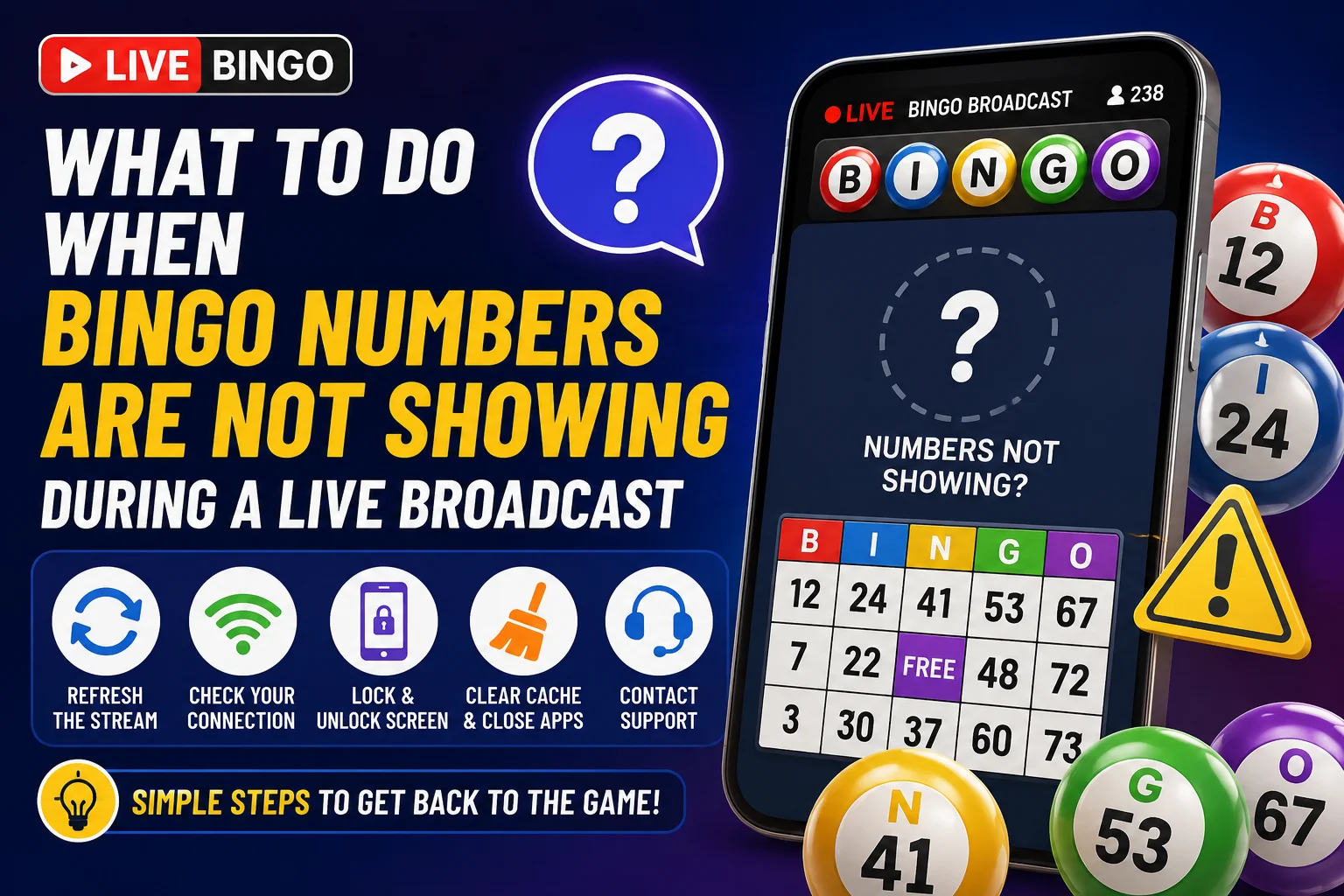
What to Do When Bingo Numbers Are Not Showing During a Live Broadcast
You join a live bingo broadcast, the game begins, and everyone else appears to be following along—but the numbers are not showing on your screen.
This can be confusing, especially when the chat is active and the next round appears to be underway. A missing or frozen number display can result from a temporary connection, browser, device, or platform-side issue.
The key is to determine whether the problem affects only your device or is affecting the wider broadcast before taking additional action.
This guide explains what to check, how to reconnect safely, and what information to provide if you need assistance.
First, Confirm That a Game Is Actually in Progress
Before changing anything on your device, confirm that the host has started the current game.
Some broadcasts include breaks between rounds. During a pause, the number display may remain blank until the next session begins.
Check:
- Whether the host announced that a new game started.
- Whether players in chat are discussing current numbers.
- Whether the game area shows a loading indicator.
- Whether the previous round has officially ended.
If the chat is active but nobody is discussing current numbers, the blank display may simply mean the next game has not started yet.
For more information about the broadcast experience, read Why Fast-Paced Bingo Broadcasts Keep Players Coming Back.
Refresh the Live Broadcast Once
A temporary loading problem can prevent the game display from updating even though the broadcast itself remains active.
Try these steps:
- Close or leave the live broadcast.
- Wait approximately five seconds.
- Open the broadcast again.
- Allow the page to finish loading before tapping anything.
During one community review, the reference number 6382 was recorded while checking whether a refreshed session loaded correctly.
Avoid repeatedly refreshing the page. One controlled refresh followed by enough time for the broadcast to reload makes it easier to determine whether the problem was temporary.
Be Careful If You Already Selected a Number
If you already submitted a number before refreshing or temporarily leaving the broadcast, do not assume your selection disappeared.
The system may already have recorded it.
Before selecting again, check your current information or ask the host whether the original selection was received.
For a detailed explanation, read What Happens If You Exit a Bingo Game by Mistake After Selecting a Number?.
Lock and Unlock Your Phone Screen
If the chat continues moving while the bingo display appears frozen, your device may not be redrawing part of the page correctly.
Try pressing your phone’s power button once to lock the screen. Wait a few seconds, unlock it, and return to the broadcast.
This may help in some cases, but it is not guaranteed to fix the underlying issue.
If nothing changes, continue with the next troubleshooting step rather than repeatedly locking and unlocking the device.
Check Your Internet Connection
Live broadcasts require a stable connection to receive updates consistently.
A connection problem can sometimes affect different parts of a page differently. For example, lightweight chat messages might continue appearing while video or interactive content stalls.
Check whether your device is connected to Wi-Fi or mobile data.
You can try:
- Moving closer to your Wi-Fi router.
- Switching from Wi-Fi to mobile data if appropriate.
- Switching from mobile data to a stable Wi-Fi connection.
- Closing other apps that are heavily using your connection.
- Waiting briefly for the broadcast to reconnect.
The challenge word Reconnect is a useful reminder: make one controlled connection change, allow the broadcast time to reload, and then check the display again.
Avoid rapidly switching between networks during an active round.
Check Whether the Display Is Frozen
Sometimes the problem is not a completely blank screen. Instead, the display may be stuck on an earlier number or previous game.
Compare what you see with the current chat and host announcements.
If participants are clearly discussing a new game while your screen continues showing an older result, your display may not be updating correctly.
For another troubleshooting guide, read Why a Bingo Live Stream May Go Black and What Players Should Do.
Make Sure Your Browser Is Updated
An outdated browser can sometimes have trouble displaying modern live or interactive content.
Check your device’s app store for an available browser update.
If you install an update:
- Close the browser completely.
- Reopen it.
- Sign back in if necessary.
- Return to the Bingo Broadcast.
You can also test another supported browser to determine whether the issue appears limited to your current browser.
Close Unused Apps
Devices with limited available memory can struggle when several apps are running at once.
Closing unused video, social-media, shopping, music, or other resource-intensive apps may help your browser run more smoothly.
You generally do not need to reset your entire phone or delete important app data just to troubleshoot a stalled bingo display.
Clear Cached Files Carefully
If the problem continues, cached browser files can sometimes be worth checking.
Your browser may offer options such as:
- Clear cached images and files.
- Clear temporary website files.
- Clear browsing data.
Be careful about selecting options that remove saved passwords, autofill information, cookies, or other data you want to keep.
After clearing only the appropriate cached files, return to GC7 Café, sign in if necessary, and check the broadcast again.
Do Not Submit the Same Selection Repeatedly
When the display is delayed, repeatedly tapping the same selection button can create additional confusion.
Your first request may already have reached the system even though your screen has not visually updated.
Tap once and wait for confirmation.
If you cannot determine whether the selection was recorded, ask the host or support before attempting another selection.
What If You Cannot Pick a Number?
A missing number display and an inability to submit a selection can sometimes appear together, but they are not necessarily the same problem.
If the broadcast is visible but you cannot make an allowed selection, read Unable to Pick a Number During Bingo: Causes, Fixes and Tips for a Better Experience.
Knowing whether the problem involves the broadcast display, the selection controls, or both can make troubleshooting easier.
Determine Whether Other Players Have the Same Problem
One useful clue is whether several participants report the same issue at approximately the same time.
If only your device appears affected, local troubleshooting may help.
If multiple players suddenly report missing numbers, a frozen display, or the same loading problem, the issue may be affecting a wider portion of the broadcast.
Do not assume this automatically means the game has been canceled, restarted, or changed.
Wait for official guidance from the host or platform.
Tell the Host or Support Team Exactly What You See
If basic troubleshooting does not resolve the problem, provide a concise description.
Useful information includes:
- Your username.
- The device you are using.
- Your browser, if known.
- Whether you are using Wi-Fi or mobile data.
- The approximate time the problem started.
- Whether the chat is still updating.
- Whether the game area is blank, frozen, or loading.
- Whether you already selected a number.
- The troubleshooting steps you already attempted.
For example:
My bingo numbers are not showing. The chat is still updating, but the game display appears frozen. I refreshed once and checked my connection. I have not submitted another selection.
This gives the host or support team useful information without requiring them to reconstruct the problem from several separate messages.
Take a Screenshot When Possible
A screenshot can document what appeared on your device at a particular moment.
When appropriate, capture:
- The broadcast area.
- Any loading symbol.
- Visible error messages.
- The time displayed on your device.
- Relevant portions of the chat.
Do not crop or edit away information that may help establish what happened.
Activity Records Can Help With a Review
When a technical problem affects participation, configured activity records may help establish the sequence of recorded events.
For example, records may help identify:
- Which game session was active.
- When certain recorded events occurred.
- Whether relevant chat messages were recorded.
- Whether an interruption corresponded with other recorded activity.
A timestamped player report can help administrators compare the player’s experience with the available broadcast and activity records.
Activity logs do not automatically prove everything that happened on an individual device, but they can provide useful evidence during a review.
Join the Broadcast Early When Possible
Opening the broadcast before the first scheduled game gives you time to identify a display or connection problem before an active round.
Before the session begins:
- Sign in to your account.
- Check your internet connection.
- Open the broadcast.
- Confirm that the game area loads.
- Check whether chat is updating.
- Review current host instructions.
Preparing early can reduce avoidable participation problems, but it does not change the random outcome of a bingo game.
Follow Official Instructions During a Wider Problem
If several players report the same issue, the host may provide instructions about what participants should do next.
Follow those instructions instead of attempting several different fixes simultaneously.
Do not assume that a technical interruption automatically means:
- The game has ended.
- The round has been canceled.
- Your selection disappeared.
- You can select another number.
- A result will be changed.
Those decisions should come from the applicable event rules and official guidance.
Know How the Broadcast Normally Works
Understanding the normal flow of a Bingo Broadcast makes unusual behavior easier to recognize.
For example, knowing when selections normally open and close can help you distinguish a normal pause from a technical problem.
Read How to Win & What You Can Earn in GC7 Café Bingo Broadcast for more information about the broadcast format and participation process.
GC7 Café Access and Support
Players can visit GC7 Café for current Bingo Broadcast access, account information, and platform announcements.
New members can also review the GC7 Café registration page for current signup and eligibility information.
Final Thoughts
When bingo numbers are not showing during a live broadcast, start with the simplest checks.
Confirm that a game is actually active, refresh the broadcast once, check whether your screen is frozen, verify your internet connection, and close unnecessary apps.
If you already selected a number, do not automatically select again after reconnecting. Confirm whether the original selection was recorded first.
If the problem continues, take a screenshot and provide the host or support team with the approximate time and a clear description of what happened.
Some display problems can be corrected with basic troubleshooting, while others may originate from the broadcast or platform itself. Identifying which situation you are dealing with is more useful than repeatedly refreshing or submitting additional selections.
Must be 18 years or older where applicable. Void where prohibited by law. Eligibility, Bingo Broadcast schedules, participation procedures, rewards, and technical processes may change. Follow current GC7 Café instructions and official event rules.
📚 Read & Earn
Think you found all the answers? Read the article carefully and complete the information below.
Verification Number: __________
Challenge Word: __________
Bonus Fact: __________
All three answers are hidden somewhere in this article. Read carefully—every detail matters!
🎁 Have all the answers? Log in to GC7 Café and claim your rewards!